
How to Use Conditional Formatting in Microsoft Power BI Tables

To use conditional formatting in Microsoft Power BI tables, select your table visual, go to the “Format” pane, choose the column, and apply rules, color scales, or icons based on values to highlight important data.
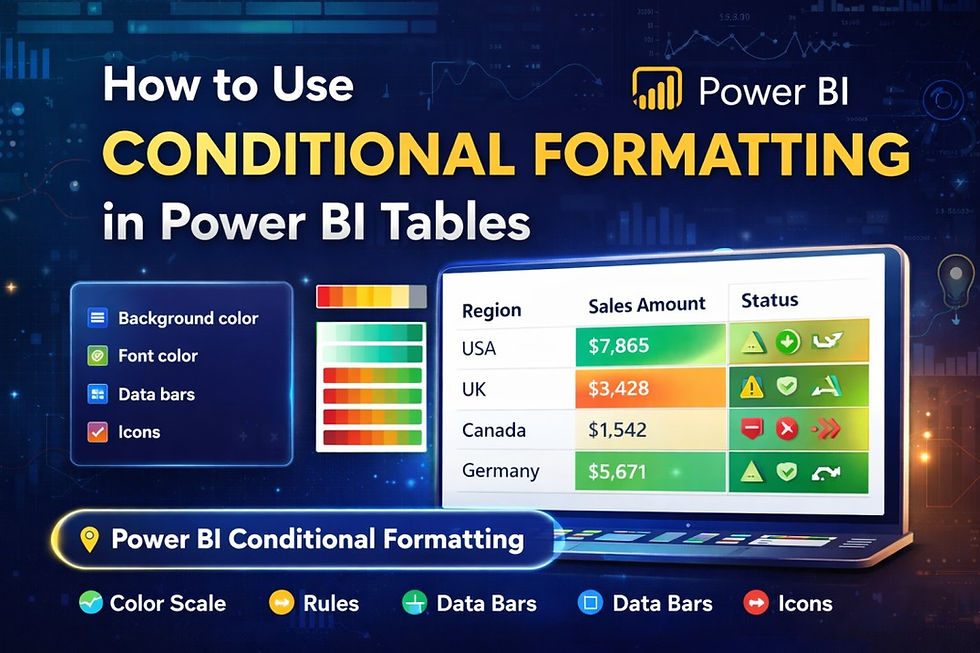
What is Conditional Formatting in Power BI?
Conditional formatting allows you to automatically apply colors, icons, or data bars to table values based on conditions, making your reports more visual and easier to interpret.
It helps users instantly identify:
High and low values
Trends and patterns
Performance indicators
Step-by-Step: How to Apply Conditional Formatting
Step 1: Select Your Table Visual
Open your report and click on the table or matrix where you want to apply formatting.
Step 2: Go to Format Pane
In the visualization panel, click on the Format (paint roller icon).
Step 3: Choose the Column
Select the field (column) you want to format.
Step 4: Apply Conditional Formatting
Click on Conditional Formatting and choose from:
Background color
Font color
Data bars
Icons
Step 5: Set Rules or Color Scale
Define rules such as:
Greater than / less than
Based on another field
Gradient color scale
Types of Conditional Formatting in Power BI
1. Color Scale: Applies gradient colors based on value range.
2. Rules-Based Formatting: Uses conditions like “greater than 1000 = green”.
3. Data Bars: Displays horizontal bars inside cells.
4. Icons: Adds symbols like arrows or flags.
Best Practices for Better Dashboards
Use consistent color logic (e.g., green = good, red = bad)
Avoid over-formatting (keep it clean)
Highlight only important KPIs
Use icons for quick decision-making
Common Mistakes to Avoid
Applying too many colors (confuses users)
Using inconsistent rules
Ignoring accessibility (color blindness)
Not testing with real data
Use Cases in Business
Sales performance dashboards
Financial reporting tables
HR analytics (employee metrics)
Marketing campaign tracking
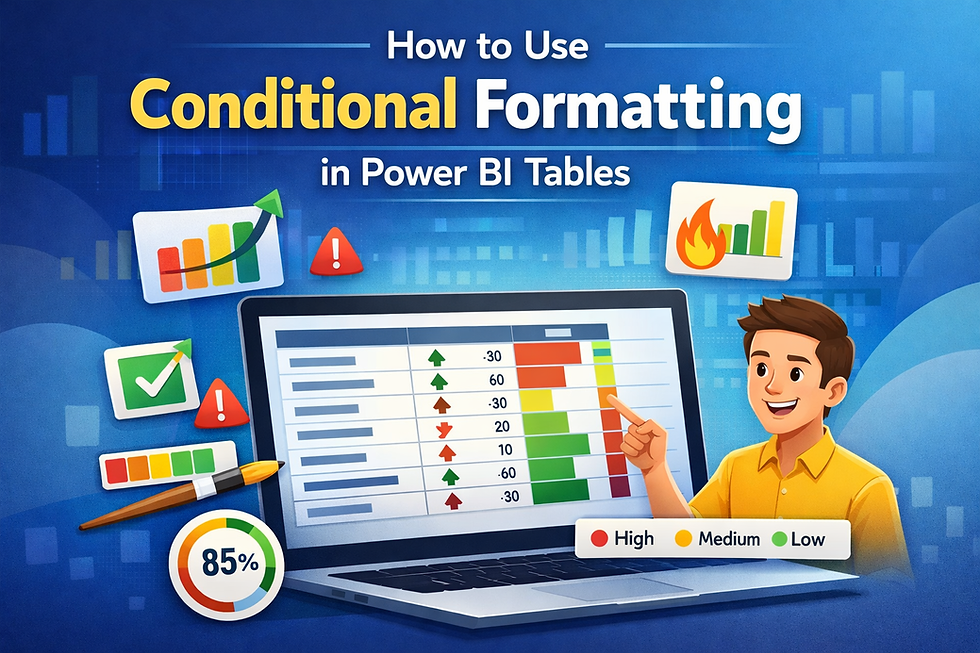
Conditional formatting in Microsoft Power BI tables allows you to visually highlight important data using colors, icons, and data bars, making dashboards more insightful and easier to understand.


Comments